影刀RPA 验证码处理方案:识别与绕过策略

影刀RPA 验证码处理方案:识别与绕过策略
署名:林焱
什么情况用什么
做网页自动化采集时,登录或频繁请求经常遇到验证码。验证码类型不同,处理策略也不同。
| 验证码类型 | 推荐方案 | 成功率 |
|---|---|---|
| 纯数字/字母图片 | OCR识别 / 打码平台 | 80-95% |
| 滑动拼图 | 模拟轨迹滑动 | 70-90% |
| 点选文字/图标 | 打码平台 / AI模型 | 60-85% |
| reCAPTCHA/极验 | Cookie保持 + 降低频率 | 视情况 |
怎么做
方案一:影刀OCR识别简单验证码
对于简单的数字字母验证码(纯文本、无干扰线):
流程设计: 1. 【等待元素出现】验证码图片元素 2. 【截图】截取验证码区域 3. 【OCR识别】识别截图中的文字 4. 【设置变量】识别结果存入变量 5. 【填写输入框】把识别结果填入验证码输入框 6. 【点击】点击登录按钮Python代码块优化识别:
拼多多店群自动化报活动上架!
fromPILimportImage,ImageEnhance,ImageFilterimportos# 验证码图片预处理:提升OCR识别率defpreprocess_captcha(img_path,output_path):img=Image.open(img_path)# 转灰度img=img.convert("L")# 二值化(threshold=160,低于160变黑,高于变白)threshold=160table=[]foriinrange(256):ifi<threshold:table.append(0)else:table.append(1)img=img.point(table,"1")# 去噪(中值滤波)img=img.filter(ImageFilter.MedianFilter(size=3))# 放大2倍(提高OCR对小字识别率)img=img.resize((img.width*2,img.height*2))img.save(output_path)returnoutput_path# 预处理后交给影刀OCR指令识别preprocess_captcha(r"D:\temp\验证码.png",r"D:\temp\验证码_处理后.png")方案二:滑动验证码处理
importrandomimporttimedefgenerate_slide_track(distance,duration_ms=800):""" 生成滑动轨迹:模拟人工滑动(先快后慢) distance: 需要滑动的距离(像素) duration_ms: 总时长(毫秒) """track=[]current=0# 减速阶段参数mid=distance*0.7# 前70%加速,后30%减速steps=30# 总步数interval=duration_ms/stepsforiinrange(steps):ifcurrent<mid:# 加速阶段t=i/steps move=int(distance*0.7*(2*t-t*t))else:# 减速阶段remaining=distance-current move=max(1,int(remaining*0.15))# 添加随机抖动jitter=random.randint(-1,2)move=max(1,move+jitter)current+=move track.append({"x":min(current,distance),"y":random.randint(-1,1),# y方向微小抖动"delay":interval+random.uniform(-5,10)})# 最后精确到目标位置track.append({"x":distance,"y":0,"delay":100})# 稍微过冲再回退(模拟人工微调)track.append({"x":distance+3,"y":0,"delay":50})track.append({"x":distance,"y":0,"delay":80})returntrack# 生成滑动轨迹track=generate_slide_track(200)# 滑动200像素# 在影刀中用【模拟鼠标拖动】按轨迹滑动# yd_output = {"track": track}影刀流程配合:
1. 【等待元素出现】滑块元素 2. 【执行Python代码】生成滑动轨迹 3. 【鼠标按下】在滑块上按下 4. 循环:按轨迹移动鼠标 - 【设置变量】x坐标、y坐标、延迟时间 - 【鼠标移动】到相对位置 - 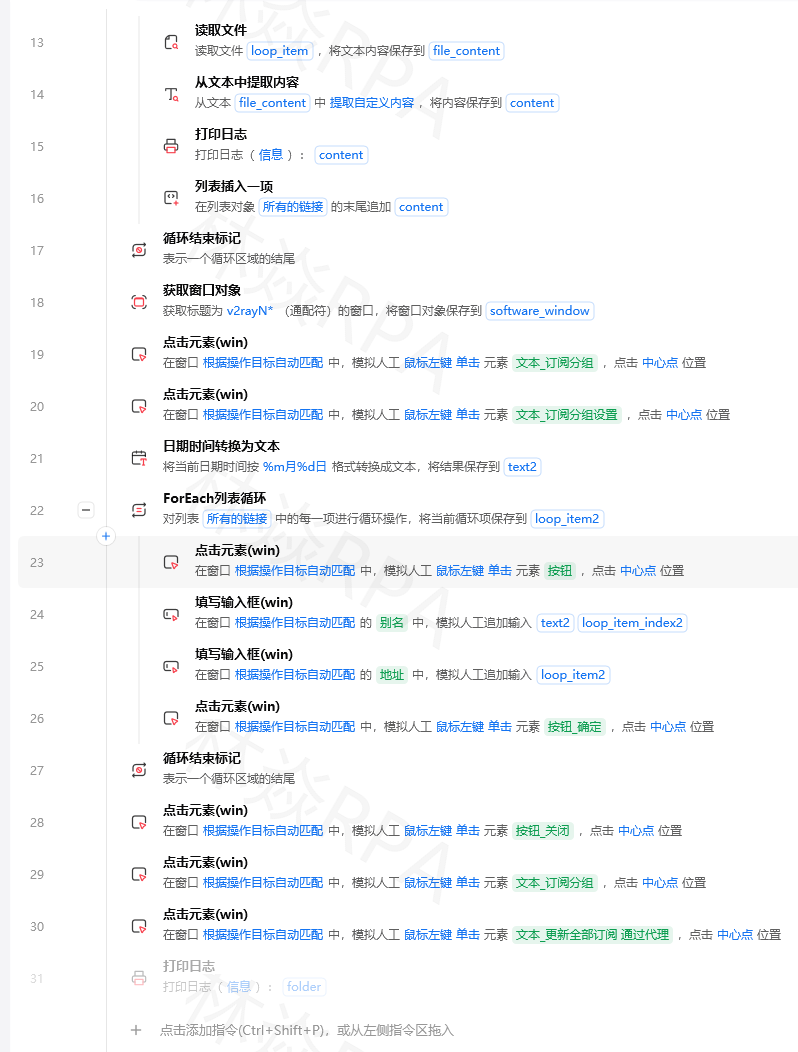 - 【等待】延迟时间 5. 【鼠标释放】松开滑块 6. 【等待】检测是否验证成功方案三:打码平台API调用
importrequestsimportbase64importtimedefrecognize_captcha(image_path,api_url,api_key):"""调用打码平台识别验证码"""# 读取图片并base64编码withopen(image_path,"rb")asf:img_base64=base64.b64encode(f.read()).decode()# 提交识别任务response=requests.post(api_url,json={"image":img_base64,"type":"captcha",# 验证码类型"api_key":api_key},timeout=30)result=response.json()ifresult.get("code")==0:returnresult.get("data",{}).get("result","")else:print(f"识别失败:{result.get('message')}")returnNone# 使用code=recognize_captcha(r"D:\temp\验证码.png","https://api.example.com/recognize","your_api_key")ifcode:print(f"验证码:{code}")方案四:Cookie保持避免频繁触发验证码
importrequestsimportpickleimportosclassCookieManager:"""保持登录状态,避免频繁触发验证码"""def__init__(self,cookie_file="cookies.pkl"):self.cookie_file=cookie_file self.session=requests.Session()self.session.headers.update({"User-Agent":"Mozilla/5.0 (Windows NT 10.0; Win64; x64) AppleWebKit/537.36"})defsave_cookies(self):"""保存Cookie到文件"""withopen(self.cookie_file,"wb")asf:pickle.dump(self.session.cookies,f)defload_cookies(self):"""加载已保存的Cookie"""ifos.path.exists(self.cookie_file):withopen(self.cookie_file,"rb")asf:self.session.cookies=pickle.load(f)returnTruereturnFalsedefis_logged_in(self,check_url):"""检查Cookie是否还有效"""resp=self.session.get(check_url,allow_redirects=False)returnresp.status_code==200defrequest_with_retry(self,url,method="GET",max_retries=3,**kwargs):"""带重试的请求"""forattemptinrange(max_retries):try:resp=self.session.request(method,url,timeout=15,**kwargs)if"验证码"inresp.textor"captcha"inresp.text.lower():print(f"触发验证码,尝试{attempt+1}/{max_retries}")time.sleep(5*(attempt+1))# 等待后重试continuereturnrespexceptExceptionase:print(f"请求失败:{e}, 重试{attempt+1}")time.sleep(3)returnNone# 使用cm=CookieManager(r"D:\config\site_cookies.pkl")cm.load_cookies()# 每次请求用session保持Cookieresp=cm.request_with_retry("https://example.com/data")完整流程:带验证码处理的登录
importrequestsimporttimeimportos# yd_input: username, password, max_captcha_retriesusername=yd_input.get("username","")password=yd_input.get("password","")max_retries=yd_input.get("max_captcha_retries",3)session=requests.Session()session.headers.update({"User-Agent":"Mozilla/5.0 (Windows NT 10.0; Win64; x64) AppleWebKit/537.36"})# 先访问登录页获取Cookiesession.get("https://example.com/login")forattemptinrange(max_retries):print(f"第{attempt+1}次尝试登录")# 1. 下载验证码图片captcha_resp=session.get("https://example.com/captcha.png",timeout=10)captcha_path=r"D:\temp\captcha.png"withopen(captcha_path,"wb")asf:f.write(captcha_resp.content)# 2. 识别验证码(这里用影刀OCR或打码平台)# 实际使用时用影刀OCR指令识别,或调用打码API# captcha_code = yd_input.get("captcha_code", "") # 从影刀获取# 模拟OCR结果captcha_code=""# 实际从OCR获取ifnotcaptcha_code:print("验证码识别失败,重试")time.sleep(2)continue# 3. 提交登录login_data={"username":username,"password":password,"captcha":captcha_code}resp=session.post("https://example.com/login",data=login_data,timeout=15)# 4. 检查是否登录成功if"登录成功"inresp.textorresp.url=="https://example.com/home":# 保存Cookie供后续使用importpicklewithopen(r"D:\config\cookies.pkl","wb")asf:pickle.dump(session.cookies,f)yd_output={"status":"ok","message":"登录成功","attempts":attempt+1}breakelif"验证码"inresp.text:print("验证码错误,重试")time.sleep(2)else:print(f"登录失败:{resp.text[:200]}")yd_output={"status":"error","message":"登录失败"}breakelse:yd_output={"status":"error","message":f"超过最大重试次数{max_retries}"}有什么坑
坑一:OCR识别率太低
现象:简单数字验证码OCR识别率只有30%。
原因:验证码有干扰线、背景噪点、字体扭曲等干扰。
解决:图片预处理 + 多次重试:
fromPILimportImage,ImageFilterdefenhance_captcha(img_path):"""验证码图片预处理"""img=Image.open(img_path)# 1. 转灰度img=img.convert("L")# 2. 增强对比度fromPILimportImageEnhance enhancer=ImageEnhance.Contrast(img)img=enhancer.enhance(2.0)# 3. 二值化img=img.point(lambdax:0ifx<140else255,"1")# 4. 去噪img=img.filter(ImageFilter.MedianFilter(size=3))# 5. 放大img=img.resize((img.width*3,img.height*3))img.save(img_path)returnimg_path# 预处理后识别率可提升到60-80%# 配合多次重试(识别3次取出现最多的结果)坑二:滑动验证码总被识别为机器
现象:滑动距离对了但验证不通过,提示"请在滑块上拖动"。
TEMU店群矩阵自动化运营核价报活动
原因:滑动轨迹太规整——匀速直线移动,没有人类滑动的特征(先快后慢、微小抖动)。
解决:使用更真实的轨迹模拟:
# 关键:人类滑动有三个特征# 1. 先加速后减速(不是匀速)# 2. y方向有微小波动# 3. 结尾有过冲和回退# 参考前面的 generate_slide_track 函数# 核心是 mid点之前用加速公式,之后用减速公式# 最后加过冲回退坑三:验证码图片每次请求都变
现象:下载了验证码图片,识别后提交,但系统说验证码不对。
原因:验证码图片和登录请求不在同一个Session中,服务器生成了新的验证码。
解决:用同一个requests.Session:
# 正确:用同一个sessionsession=requests.Session()# 下载验证码(服务器记住了这个验证码的值)captcha_resp=session.get("https://example.com/captcha.png")# 提交登录(同一个session,Cookie一致)login_resp=session.post("https://example.com/login",data={...})# 错误:两个独立请求# captcha = requests.get("https://example.com/captcha.png") ❌ 新Session# login = requests.post("https://example.com/login", data={...}) ❌ 新Session,验证码对不上坑四:频繁触发验证码导致IP被封
现象:连续识别验证码登录多次后,IP被封禁。
原因:短时间内大量请求触发了反爬机制。
解决:控制频率 + Cookie复用:
importtimeimportrandom# 1. 成功登录后保存Cookie,后续请求不再登录# 2. 请求间隔加随机延迟defsmart_sleep(min_sec=2,max_sec=5):"""随机延迟,避免规律性"""time.sleep(random.uniform(min_sec,max_sec))# 3. 设置合理的重试间隔forattemptinrange(max_retries):# 尝试操作ifsuccess:break# 失败后指数退避wait_time=(2**attempt)+random.uniform(0,3)print(f"等待{wait_time:.1f}秒后重试")time.sleep(wait_time)


